A window reflection can make a spreadsheet hard to read. A colleague walking past your desk can have the opposite problem: they can read it too easily. Both issues have screen accessories that claim to help, but buying the wrong one leaves the original problem untouched.
Privacy Screen Filter vs. Anti-Glare Blue Light Protector
A privacy screen filter limits who can see your display. An anti-glare blue light protector reduces reflections and filters some blue light. Some products combine these features, but none implies the others. Check each claim separately before you buy.
| Feature | Privacy screen filter | Anti-glare blue light protector |
|---|---|---|
| Main purpose | Restricts viewing from certain angles | Reduces reflections and filters some blue light |
| What to check | Viewing direction, rated viewing angle, and fit | Matte finish, wavelength range, and filtering level |
| Common trade-off | Can dim the screen or darken its edges | Matte finishes can soften fine text; some filters can shift colors |
| Best for | Sensitive work in shared spaces | Screens affected by reflections, where off-angle privacy is not needed |
Anti-glare and blue light filtering are also separate features. If overhead lights make text hard to read, start with a matte anti-glare finish or reposition the monitor. You don’t need blue light filtering to solve a reflection problem. If color accuracy matters, check for a visible tint before committing to a protector.
How Microlouver Technology Works in Computer Privacy Screens
Most privacy screens use microlouvers: tiny, closely spaced slats that work like adjustable window blinds left in a fixed position. They let more light reach someone sitting directly in front of the display and block more light from reaching someone looking in from the side. The effect depends on the filter and the viewing angle. A person directly behind you may still see the screen.
2-Way vs. 4-Way Privacy Screen Filter Explained
- 2-way privacy limits views from two opposing directions, typically left and right when a monitor is in landscape orientation. It’s a practical choice when most foot traffic passes beside your desk.
- 4-way privacy limits views from the sides and from above and below. Consider it for a desk where visitors often stand and look down at the display, or for a device that rotates between portrait and landscape.
Rated angles aren’t always presented the same way. A 60-degree total viewing cone means roughly 30 degrees on either side of center, not 60 degrees per side. Check how the manufacturer defines the angle, then test readability from the places where visitors actually stand or sit.
How to Prevent Visual Hacking and Shoulder Surfing in Open Offices
A filter is most effective when it covers sightlines you can’t eliminate by moving the screen. Both intentional shoulder surfing and accidental viewing are possible anywhere people pass or wait near a workstation.
- Turn monitors away from walkways, waiting areas, and shared seating. Check reflections in glass partitions as well as direct sightlines.
- Fit a privacy filter to each screen that displays sensitive information. Stand at nearby doors and visitor positions to see what remains readable.
- Lock the workstation when you step away and set an automatic lock timeout in line with workplace policy.
- Hide sensitive notification previews and share only the window you need during video calls. A physical filter does not hide anything from a screen share or screenshot.
- Move especially sensitive work to a private room when someone could look directly over your shoulder.
GDPR Visual Data Protection Requirements for Remote Workers
The GDPR does not specifically require remote workers to use privacy filters. For organizations subject to the GDPR, Article 5(1)(f) and Article 32 address protection against unauthorized processing and require technical and organizational measures appropriate to the risk. If someone handles personal data in a coworking space or on a train, a filter can be one safeguard alongside screen positioning, automatic locking, and clear rules about where sensitive work may be done.
HIPAA Screen Privacy Rules for Healthcare Reception Desks
HIPAA does not prescribe a particular screen filter. The U.S. Department of Health and Human Services’ guidance on incidental disclosures explains the need for reasonable safeguards and for limiting information to the minimum necessary where that standard applies. At a reception desk, turn displays away from the queue and lock them when unattended. If patients can still see the scheduling screen from the counter, a filter can help with off-angle views, but relocating the display is a better fix for a direct sightline.
How to Choose the Best Privacy Screen Filter for 27-Inch Dual Monitors
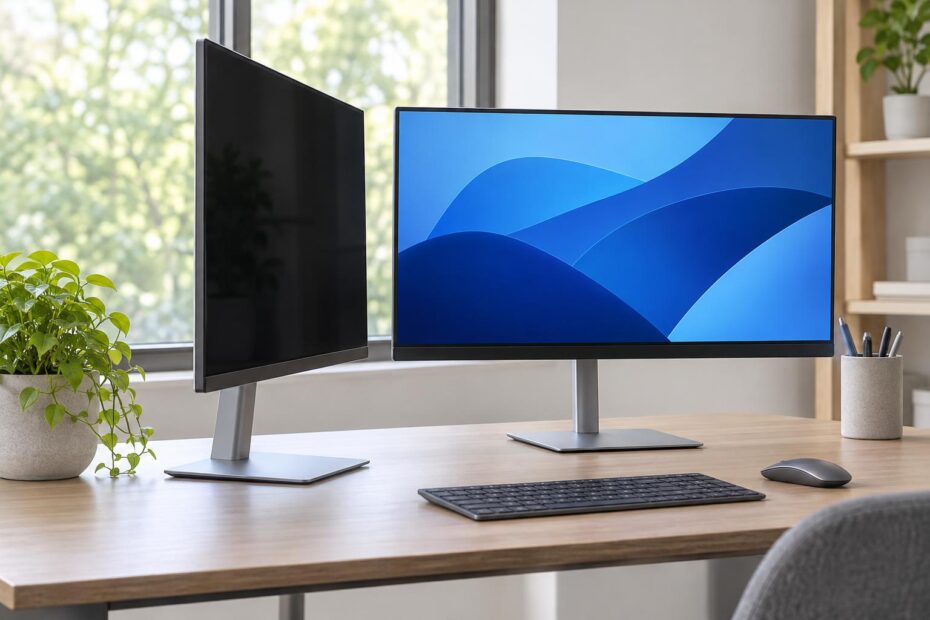
The best privacy screen filter for a 27-inch dual-monitor setup is one you can read comfortably from your chair but visitors can’t read from typical viewing positions. A narrow viewing cone may work well on a single display, yet make the outer edge of a second monitor look dark unless you angle it toward you.
- Check both model numbers. Two 27-inch monitors can have different aspect ratios, bezel designs, or mounting requirements.
- Match the filter to the desk layout. Start with 2-way protection for side traffic. Consider 4-way protection if people can also look down at the screens from a counter or standing position.
- Angle both monitors toward your seat. Check the far edges of each screen at your usual sitting distance. Then step into the aisle and check what a passerby can see.
- Pick a mount that suits how you work. A removable filter is useful if you regularly show your screen to a colleague. Check that the mount fits your bezel and leaves any camera or sensors unobstructed.
How to Measure Your Monitor for a Frameless Privacy Filter
Use the model number to check the manufacturer’s compatibility chart first. If you need to measure manually, display a full-screen image so you can see where the active picture ends. Measure its width and height, not just the diagonal. Exclude the bezel unless the filter maker specifies edge-to-edge measurements for that mounting system.
A typical 27-inch, 16:9 screen has an active area of about 23.5 by 13.2 inches (598 by 336 mm). Use that only as a cross-check. Compare your actual dimensions with the filter’s size chart, and confirm compatibility separately if the monitor is curved or used in portrait mode.
How to Clean a Laptop Privacy Filter Without Damaging Microlouvers
The microlouvers are generally embedded in the filter, so routine cleaning is about protecting its surface, coatings, and edges. Follow the manufacturer’s care instructions first, since approved cleaners vary by model.
- Turn off the laptop. If the filter is designed to be removable, take it off and support it on a clean, flat surface.
- Lift loose dust with a clean, dry microfiber cloth. Wipe gently rather than scrubbing a stubborn spot.
- If the manufacturer permits it, lightly dampen the cloth with water or an approved cleaner. Don’t spray liquid directly onto the filter or let it collect along the edges.
- Let the filter dry completely before reinstalling it. Avoid paper towels, abrasive pads, and solvents unless the manufacturer explicitly approves them.
The Takeaway: Buy for the Problem You Need to Solve
Choose a privacy screen filter when people can see information they shouldn’t. Choose anti-glare when reflections make the display harder to read, and treat blue light filtering as a separate feature. If you need both privacy and glare reduction, look for a matte privacy filter and test it at your desk. The deciding test is simple: small text should stay clear from your chair and be hard to read from the places other people actually stand.